Install Conky Lua in Ubuntu/Linux Mint/Other Distro's (Easy Installation)
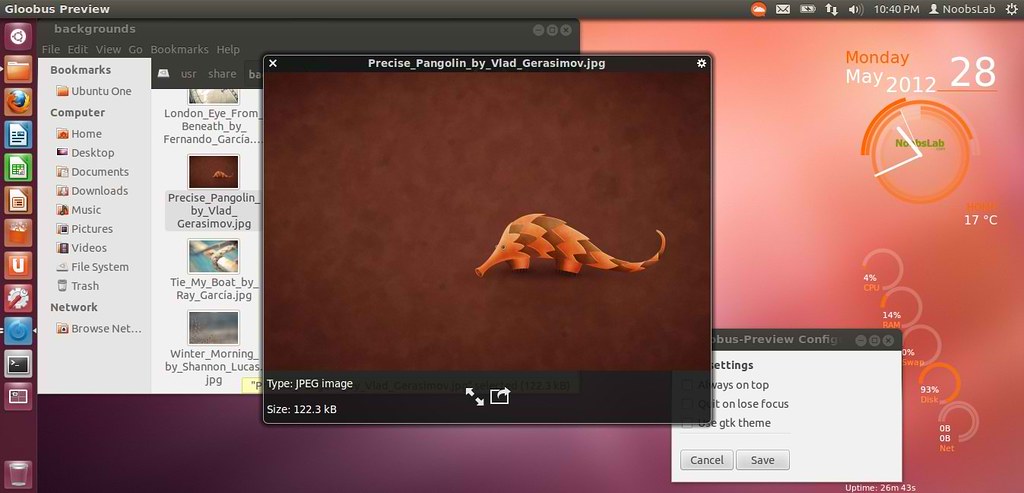
Conky Lua is very nice gadget for every linux user, It shows usage of your system like cpu, disk, memory, net upload and download speed, also date & time. Many users wrote me about this gadget, they like it so much. So Now we will start. I customized this gadget in different flavors.
Checkout Collection of Conky.

Install Conky in Ubuntu/Linux Mint open terminal (Press Ctrl+Alt+T) and copy the following commands in the Terminal:
First of all Download Startup script with following commands:
Now open Startup Applications > click Add > New Dialog box will open click on Browse > Now (Press Ctrl+H) see following screenshot.

1: Gray Flavor

To Install Gray-Flavor open Terminal and enter following commands:
2: Light-Blue Flavor

To Install Light-Blue-Flavor open Terminal and enter following commands:
3: Green Flavor

To Install Green-Flavor open Terminal and enter following commands:
4: Orange Flavor

To Install Orange-Flavor open Terminal and enter following commands:
5: Red Flavor

To Install Red-Flavor open Terminal and enter following commands:
6: Yellow Flavor

To Install Yellow-Flavor open Terminal and enter following commands:
7: Blue Flavor

To Install Blue-Flavor open Terminal and enter following commands:
8: Black Flavor

To Install Black-Flavor open Terminal and enter following commands:
9: White Flavor
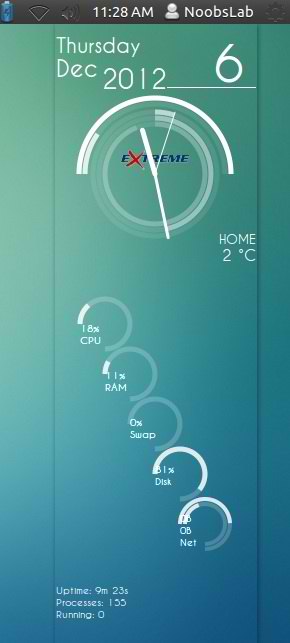
To Install White-Flavor open Terminal and enter following commands:
10: Black/White Flavor
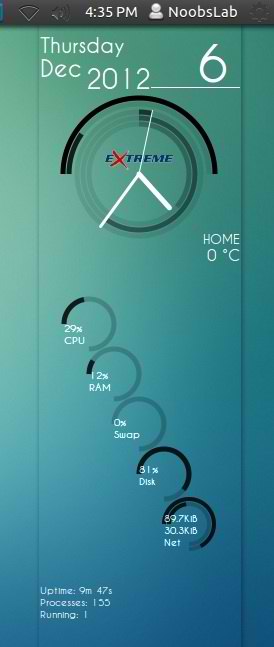
To Install Black/White-Flavor open Terminal and enter following commands:
>> Setup Weather:
First Go to This link: http://weather.noaa.gov , Here you will select your country and city than it will show current weather situation of your country. You will see code in red, just copy four word code.

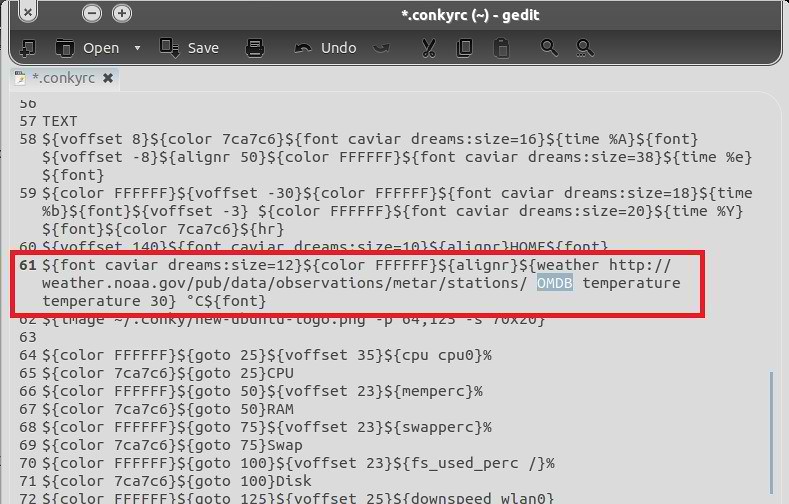
Now enter following command in terminal, it will open file in text editor. Go to Line 61:
Paste the four word code before temperature word. See the following image
 Save and close.
That's it
Conky Lua is very nice gadget for every linux user, It shows usage of your system like cpu, disk, memory, net upload and download speed, also date & time. Many users wrote me about this gadget, they like it so much. So Now we will start. I customized this gadget in different flavors.
Checkout Collection of Conky.

Install Conky in Ubuntu/Linux Mint open terminal (Press Ctrl+Alt+T) and copy the following commands in the Terminal:
First of all Download Startup script with following commands:
Now open Startup Applications > click Add > New Dialog box will open click on Browse > Now (Press Ctrl+H) see following screenshot.

1: Gray Flavor

To Install Gray-Flavor open Terminal and enter following commands:
2: Light-Blue Flavor

To Install Light-Blue-Flavor open Terminal and enter following commands:
3: Green Flavor

To Install Green-Flavor open Terminal and enter following commands:
4: Orange Flavor
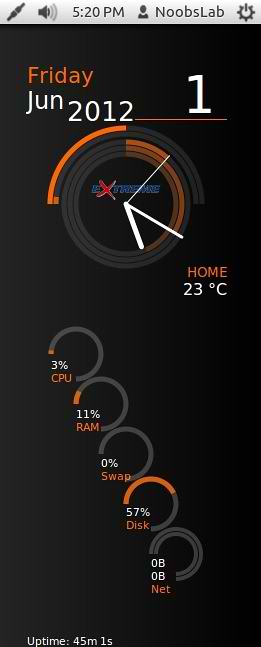
To Install Orange-Flavor open Terminal and enter following commands:
5: Red Flavor
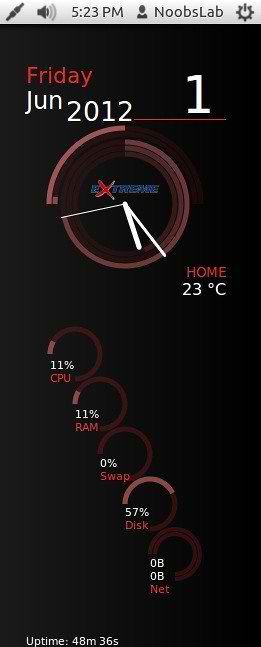
To Install Red-Flavor open Terminal and enter following commands:
6: Yellow Flavor
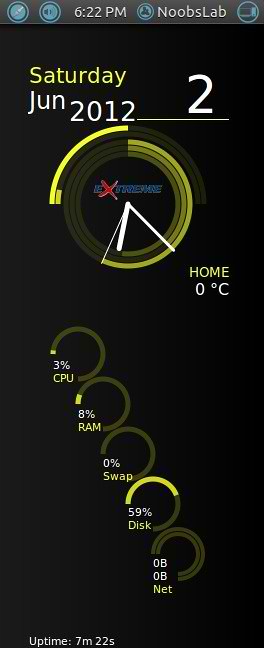
To Install Yellow-Flavor open Terminal and enter following commands:
7: Blue Flavor
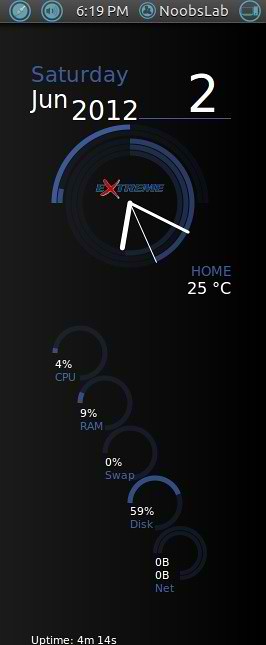
To Install Blue-Flavor open Terminal and enter following commands:
8: Black Flavor
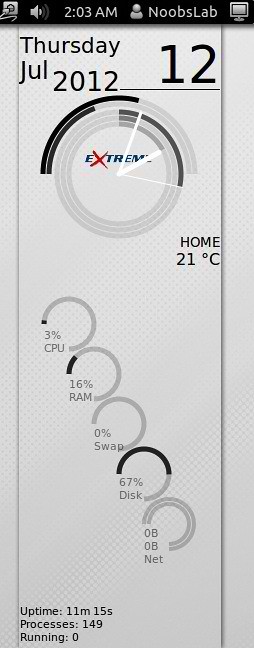
To Install Black-Flavor open Terminal and enter following commands:
9: White Flavor
To Install White-Flavor open Terminal and enter following commands:
10: Black/White Flavor
To Install Black/White-Flavor open Terminal and enter following commands:
>> Setup Weather:
First Go to This link: http://weather.noaa.gov , Here you will select your country and city than it will show current weather situation of your country. You will see code in red, just copy four word code.
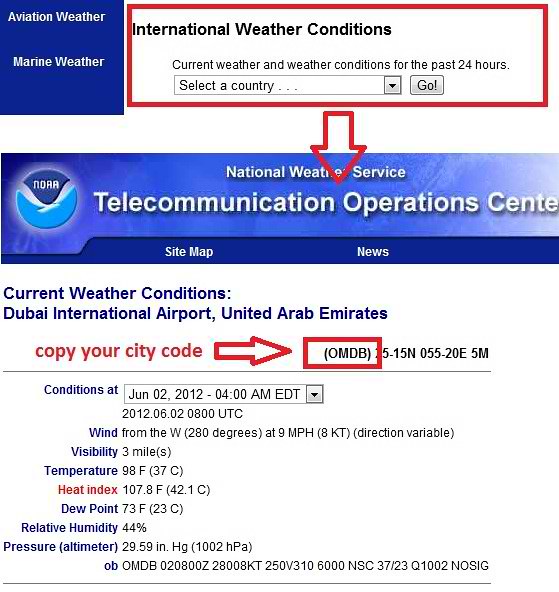
Now enter following command in terminal, it will open file in text editor. Go to Line 61:
Paste the four word code before temperature word. See the following image
That's it