2/1/12 - 3/1/12
Previous I shared how to Easily Reset your Linux User account password from grub. After that post many people wrote me so Linux is really unsecured (How we can protect this?). So it is not a big issue to secure grub or how to secure your user account in Linux. So I decided to make a tutorial on 'grubpass' utility, which can protect your grub entries. Nobody can bypass grub2 without enter grub username and password. Ya it's looks like awesome utility. Grubpass 1.2 version utility uses password encryption to protect.

So Now we start how to protect grub entries with password. I have uploaded to dropbox so it is easy to download and install. You also can download deb package and tar.gz package from Author Page.

To Install it on Ubuntu/Linux Mint open Terminal (Press Ctrl+Alt+T) and enter the following commands in the Terminal:


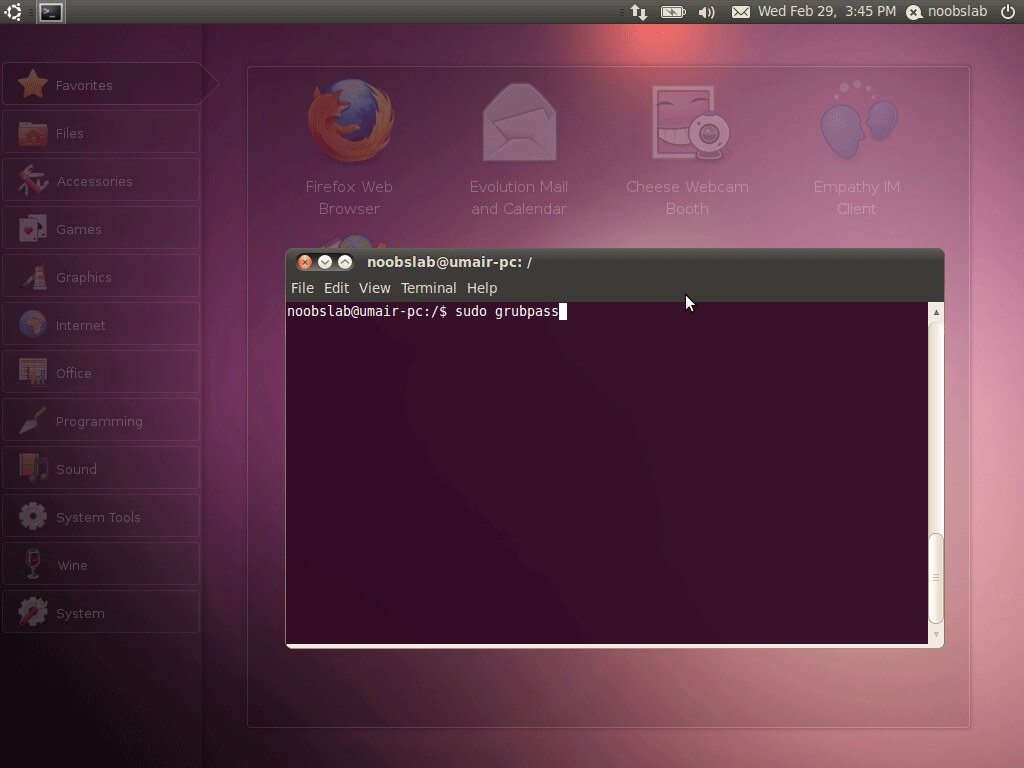
Now start Grubpass with following command:


How to use Grubpass see ScreenShots: (click image to enlarge)

1: Installation Complete
grub2 password

2: Start GrubPass
grub2

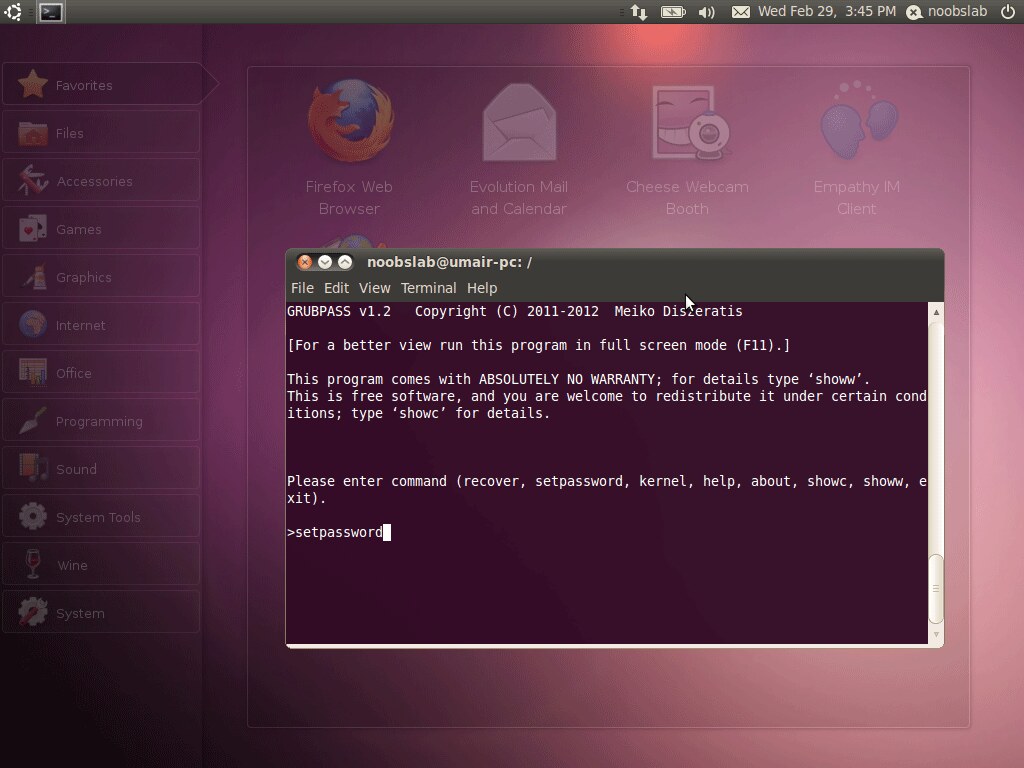
3: How to set password
Protect grub2

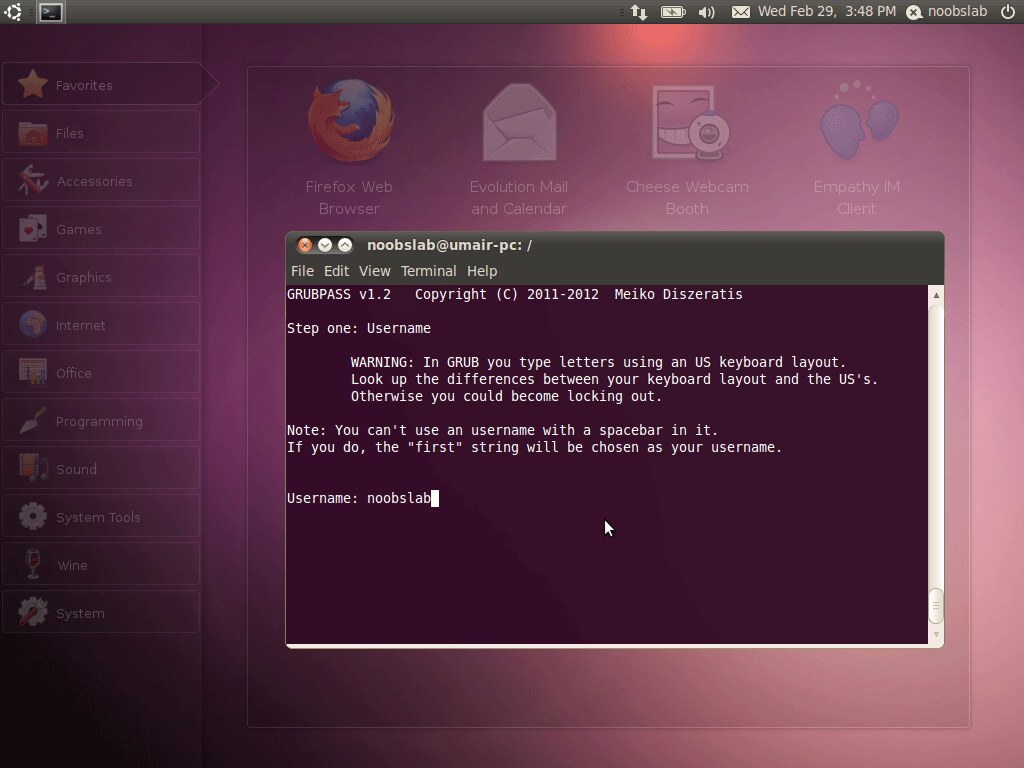
4: Create username for grub
grub2 secure

5: Follow password steps in-order to set password on grub entries
ubuntu grub2

6: Apply password on specific or all grub entries
grub2

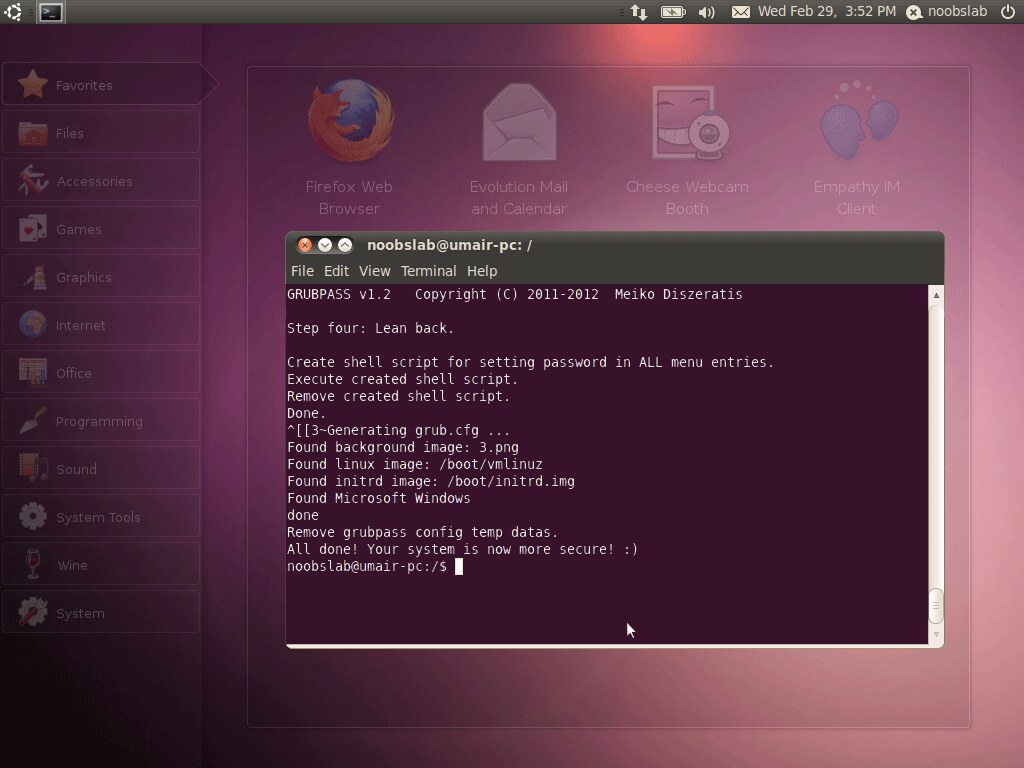
7: Finally you are done
grub2


How to Remove Password from Grub Entries?

It is really easy just enter following command and see ScreenShots.
  • sudo grubpass
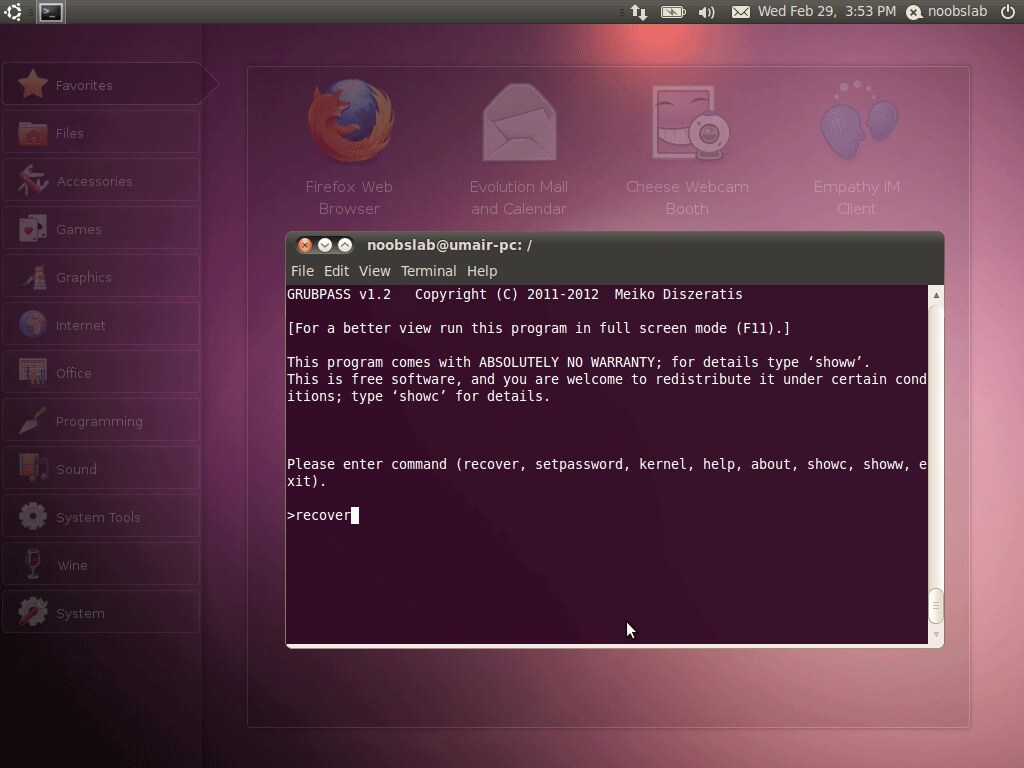
1: Now enter recover (See picture)
grub2

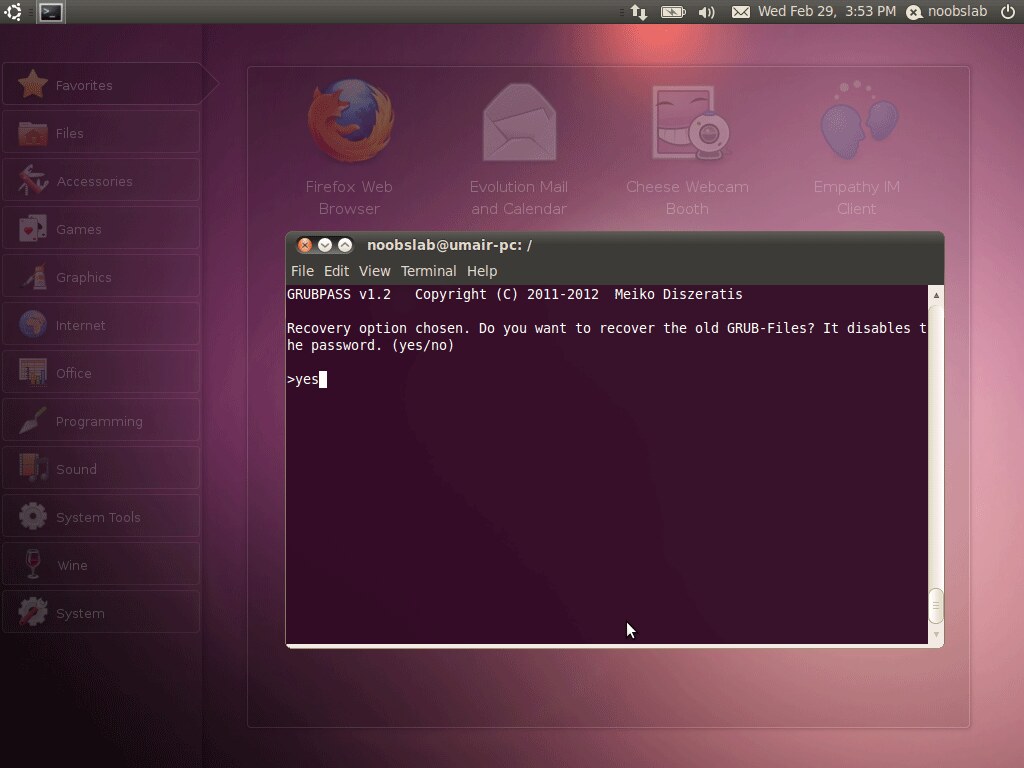
2: Finally enter yes/no
fedora grub

For other Distro's see Author Page.

Join us on Facebook, Google Plus, Twitter & YouTube and get up-to-date with latest Linux Tutorials.

facebook


google plus


twitter


youtube


Install MyUnity 3.0 on Ubuntu 12.04 Precise Pangolin/11.10 Oneiric/11.04 Natty (New Release)

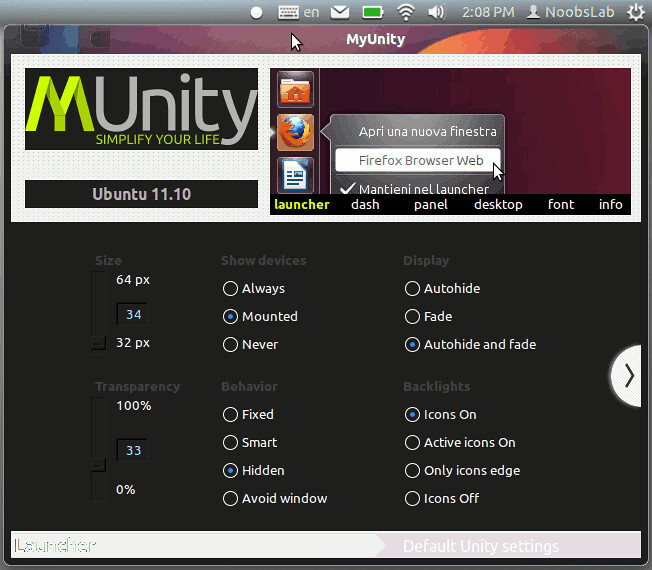
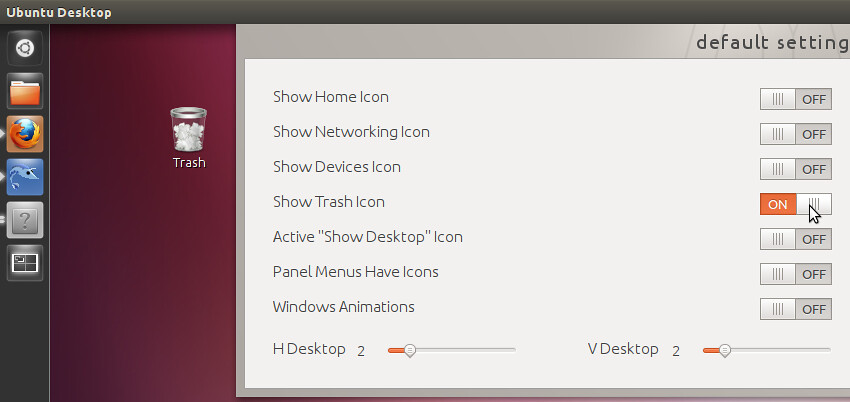
MyUnity is tweak tool for Ubuntu Unity Environment, It is really well designed and fully featured. You can find all tools for your Unity Desktop to customize your Unity.

myunity

myunity


What's new?
  • Completely redesigned GUI
  • RadioButton replaced by Combobox
  • Horizontal sliders instead of vertical sliders
  • New feature: Icons & Themes management
  • and more.

Install MyUnity 3.0 with official PPA on Ubuntu 11.10/Ubuntu 11.04 open Terminal (Press Ctrl+Alt+T) and copy the following commands in the Terminal:


When installation complete open dash and Search "myunity"
To Install MyUnity 3.0 on Ubuntu 12.04 Precise Pangolin open Terminal (Press Ctrl+Alt+T) and just enter the following command:


or install from 'Software Center'.
When installation complete open dash and Search "myunity".
Here is the Homepage of MyUnity.
Install Shutter 0.88.2 ScreenShot Tool on Ubuntu 12.04/11.10/11.04/any Ubuntu/Linux Mint (New Release)

Shutter is an open-source program, and is available completely for free!
It is really nice screenshot utility, We can say it is very advance utility to take screenshots of your screen.


In this Shutter 0.88.2 Version:
Changelog:
* Fixed bugs / minor improvements
- Edit menu items should be shown in right-click popup for object
- save image to jpg extension
- Add no_session parameter
- 'Updating plugins' dialogue appears on every startup
- FTP upload plugin recently stopped working
* Updated translations

To install Shutter ScreenShot on Ubuntu/Linux Mint open Terminal (Press Ctrl+Alt+T) and copy the following commands in the Terminal:


New CLI-Parameter
It is now possible to prevent Shutter from adding new screenshots to the internal session which is useful when using Shutter in scripts. You have to use the new parameter -n (–no_session).
Enter following command:


Improved Usability
You can now access Copy, Cut, Paste and Delete via right-click when using Shutter’s internal image editor.

Bugfixes
The other changes are mainly bug fixes that make the experience even better. As an example, uploading via FTP is now working again.

Here is the HomePage of Shutter.
Install RPM Packages on Ubuntu 12.04/11.10/any Ubuntu version/Linux Mint

Ubuntu/Mint Support only deb package installation, If you have some software in rpm package you can install it in Ubuntu/Linux Mint easily. Fedora/Redhat and Mandriva support RPM packages.
In Ubuntu/Linux Mint you can easily install softwares from Software Centers or via PPA. If any software is not available in deb/software center/ppa and it's only available in rpm, than you can easily convert that rpm file to deb package with one command using terminal.
rpm package
This RPM to DEB Conversion Utility called Alien, Which converts packages from one to the other format. It doesn't mean that convert rpm package will always work on your system. Cause there can be problem of Dependencies or libraries.


To install open Terminal (Press Ctrl+Alt+T) and copy the following command in the Terminal:


Now convert package from RPM format to Deb format, use the following command. Change your packagename in command:


To install the deb package enter following command:


That't it
New Release Install Awoken Icons 2.4 on Ubuntu 12.04 Precise Pangolin/Ubuntu 11.10 Oneiric/Ubuntu 11.04/Linux Mint 12/Linux Mint 13

awoken icons

Awoken Icons are very famous icons for Linux Distro's, It is most rated icons I have ever seen in Linux distro's. These icons are now available for Ubuntu 12.04 support and other latest & Linux flavors.

awoken icons


Changelog for 2.4 Version:
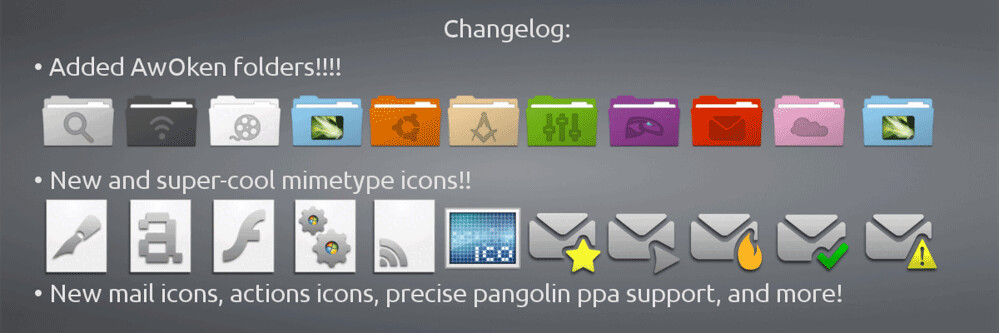
  • Added AWOKEN folders! Now the set is integrated with the most cool and stylish folders ever!
  • Drastic revision of mimetypes: now they use a different template icon (modified from Elementary icon set), and they're more refined in 24x24 version!
  • Most of the 22x22 actions icons that have characterized the latest versions have been brought to 24x24px and 128x128px resolutions. So the iconset become cleaner, cooler and more integrated! Consequently, also some status icons are changed.
  • Mail icons redrawed (both in bigger and in lower resolution). Now your favourite email client's toolbar (except thunderbird) works like a charm!
  • Added ppa for precise.
  • Drastic revision of the colorization script: now is faster, cleaner and supports parallel processing. This lead to a serious improvement on latest multi-core machines, but also on elder computers. Another big improvement is related to the fact that is now accepting RGB colors instead of CMY colors!
  • Revision of the Installation and Instructions PDF file.
  • Removed gedit choice from the customization script (it's useless having the possibility to change only one icon!).
  • Removed some folder sub-types, since the iconset is became too big. They are classy-yellow, classy-carboard, classy-white, classy-black. For the same reason, removed (from other folder types) folder-joomla, folder-wip, folder-science2, folder-windows, folder-apple, folder-ffw, folder-byte, folder-cd, folder-fonts, folder-linux1, folder-linux2, folder-public, folder-important.
  • Application added (or redrawed): accessories-text-editor-symbolic, document-open-symbolic, network-wired-disconnected, ubuntuone emblems, gtk-zoom-100 in 22x22px, jdownloader, gwibber, mail-message-new, mail-forward, mail-outbox, mail-mark-important (-junk, -notjunk, -unread, -spam), mail-reply, mail-reply-all, mail-move, edit-delete-mail, extract-archive, add-files-to-archive, add-folder-to-archive, gnome-pie, gelemental, luminance-hdr, application-x-mint, grooveshark, mintinstall, addressbook icons, call-start, call-stop, fillmore, gpick, gftp, batti, marlin, kompozer, preferences-desktop, preferences-system, preferences-desktop-personal, mime for video, midori, djvulibre, plank, fontforge, ffanvil, general settings icons, kupfer, acetoneiso, videoporama, beatbox, nvclock, cryptkeeper, bino, isomaster (I hope), gpixpod, graveman, gshutdown, ogmrip, billardgl, foobillard, fedora live usb, mp3-splt-gtk, yarock, scim-setup, application-fonts, mono-runtime, gnome-settings-default-applications, nitrogen, musique
  • Application added (or redrawed) specifically for KDE version: application-x-tarz, imagewriter, script-error, code-context, edit-link, view-group, edit-select, select-rectangular, zoom-select, insert-text, select\_rectangular, run-build-install-root.

To install Awoken Icons in Ubuntu/Linux Mint open Terminal (Press Ctrl+Alt+T) and copy the following commands in the Terminal:


To customize icons enter following command:


That's it
Source: Awoken Icons
New Release Install Transmission 2.50 BitTorrent Client on Ubuntu 12.04 Precise/Ubuntu 11.10 Oneiric/Previous Ubuntu Versions/Linux Mint

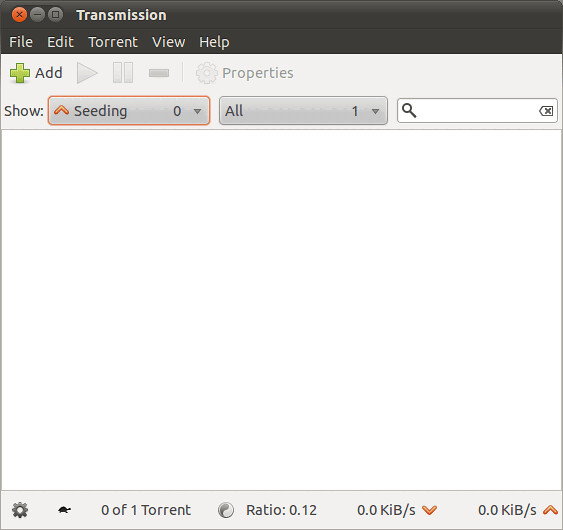
Transmission is designed for easy, powerful use. We've set the defaults to Just Work and it only takes a few clicks to configure advanced features like watch directories, bad peer blocklists, and the web interface. When Ubuntu chose Transmission as its default BitTorrent client, one of the most-cited reasons was its easy learning curve.

transmission client

transmission bittorrent

Features:
- Uses fewer resources than other clients
- Native Mac, GTK+ and Qt GUI clients
- Daemon ideal for servers, embedded systems, and headless use
- All these can be remote controlled by Web and Terminal clients
- Local Peer Discovery
- Full encryption, DHT, µTP, PEX and Magnet Link support

New in 2.50 Version:
in GTK+
  1. Fix regression that broke the "--minimized" command-line argument
  2. Instead of notify-send, use the org.freedesktop.Notifications DBus API
  3. Fix a handful of small memory leaks

To install Transmission BT Client on Ubuntu/Linux Mint open Terminal (Press Ctrl+Alt+T) and copy the following commands in the Terminal:


Here is the HomePage of Transmission.
Install Adobe Flash Alternative Light-Spark and Gnash Plugins on Ubuntu 12.04 Precise Pangolin/Ubuntu 11.10 Oneiric/Ubuntu 11.04 Natty/Linux Mint

linux flash
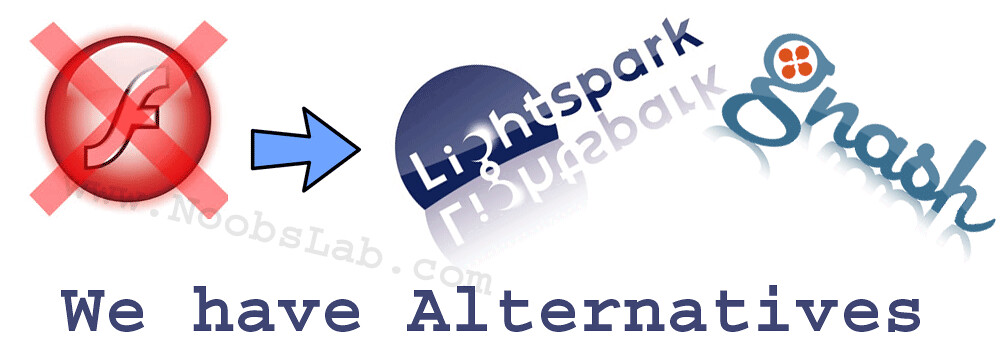
"Adobe has now announced that they will remove Flash Player for Linux and make it available only for Google Chrome. Adobe agreement with Google to release a plugin dedicated to Chrome (available for both 32-bit and 64-bit) through Pepper Plugin API (PPAPI) with which they can benefit other browser. In the next few hours Flash Player for Linux will be removed from the official repositories of Adobe."
ubuntu flash


>> Light Spark Flash Plugin for Ubuntu/Linux Mint/Other Linux Distro's.

Lightspark is an LGPLv3 licensed Flash player and browser plugin written in C++/C that runs on Linux. It aims to support Adobe's newer Flash formats and AVM2 virtual machine.
Lightspark is an open access that allows Flash content from our browser, also in the last issue the player is greatly improved not only in stability but also in support.
Improved support with YouTube, Vimeo and many other sites also thanks to the Mesa 3D toolchain with Gallium and LLVM, support for OpenGL ES 2.0 and EGL/GLES2.
linux mint flash
Lightspark features:
  • JIT compilation of Actionscript to native x86 bytecode using LLVM
  • Hardware accelerated rendering using OpenGL Shaders (GLSL)
  • Very good and robust support for current-generation Actionscript 3
  • A new, clean, codebase exploiting multithreading and optimized for modern hardware. Designed from scratch after the official Flash documentation was released.
To install LightSpark on Ubuntu 10.04 LTS/Ubuntu 10.10 Maverick Open Terminal (Press Ctrl+Alt+T) and copy the following commands in the Terminal:


For Ubuntu 11.04 Natty/Ubuntu 11.10 Oneiric/Ubuntu 12.04 Precise:


for other distro's see LightSpark page.


>> Gnash Flash Plugin for Ubuntu/Linux Mint/Other Linux Distro's.

Gnash is the GNU SWF movie player, which can be run standalone on the desktop or an embedded device, as well as as a plugin for several browsers.
sparklight flash
Gnash the GNU Flash player is a free/libre SWF movie player, with all the source code released under GPLv3. Gnash is available as both a standalone player and also as a browser plugin for Firefox (and all other Gecko based browsers), Chromium and Konqueror.
Currently Gnash has been ported to most GNU/Linux distros, embedded GNU/Linux, *BSD, non x86 architectures - ARM, MIPS, PowerPC, and even 64 bit processors. And yes, Gnash plays Youtube!!

To install Gnash on Ubuntu/Linux Mint Open Terminal (Press Ctrl+Alt+T) and copy the following commands in the Terminal:


For other distro's see Gnash Download page.
Install Tempered Glass Theme on Ubuntu 12.04 Precise/Ubuntu 11.10 Oneiric/Linux Mint/Any Linux for Gnome Shell/Cinnamon

ubuntu themes

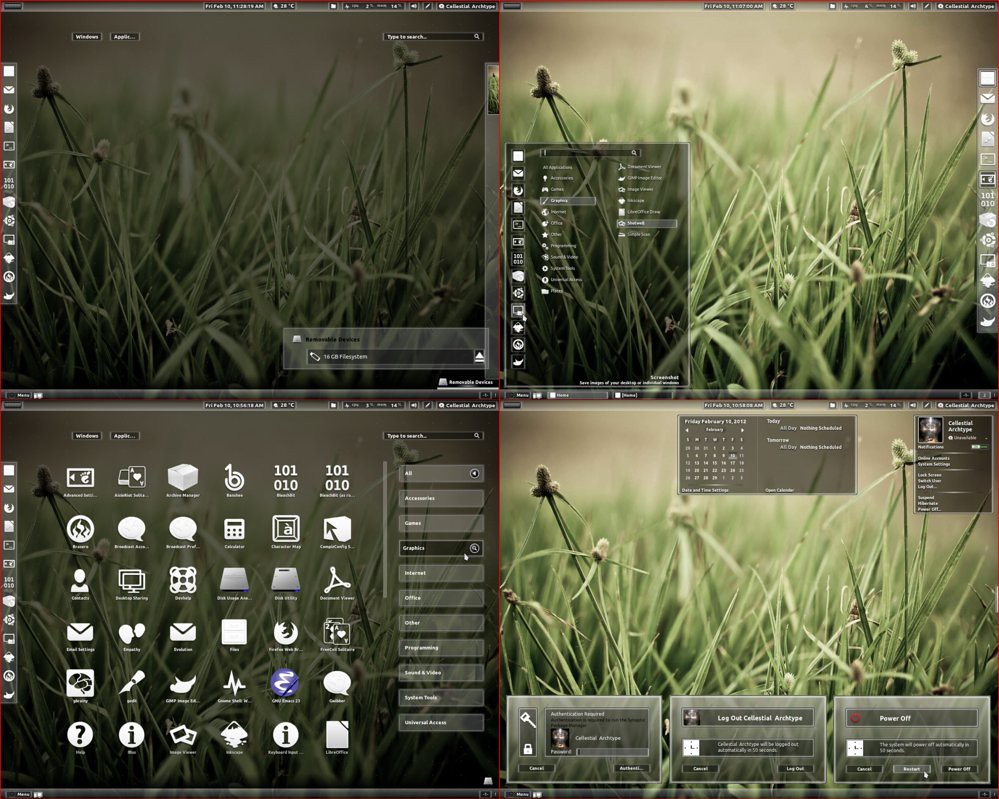
Tempered Glass (Gnome Shell 3.2.1 - 3.2.2.1 Theme) is a combination of white and dark shades of glass. The usual set of extensions (Windowlist, Menu, Dock, Bottompanel and Windowoverlay) are all supported. I tried to maintain strictly shades of glass everywhere so just note me on any issue and I will look at ajustments.
THEME IS COMPATIBLE WITH ALL LINUX DISTROS USING GNOME SHELL 3.2.1 - 3.2.2.1

First Download Theme Wallpaper
2nd Here is the Awoken Icons

>> Install Tempered Glass theme on Gnome Shell open Terminal (Press Ctrl+Alt+T) and copy the following commands in the Terminal:


or use ppa


>> Install Tempered Glass theme on Cinnamon open Terminal (Press Ctrl+Alt+T) and copy the following commands in the Terminal:


or use ppa


Now Install Gnome Tweak Tool to change theme:


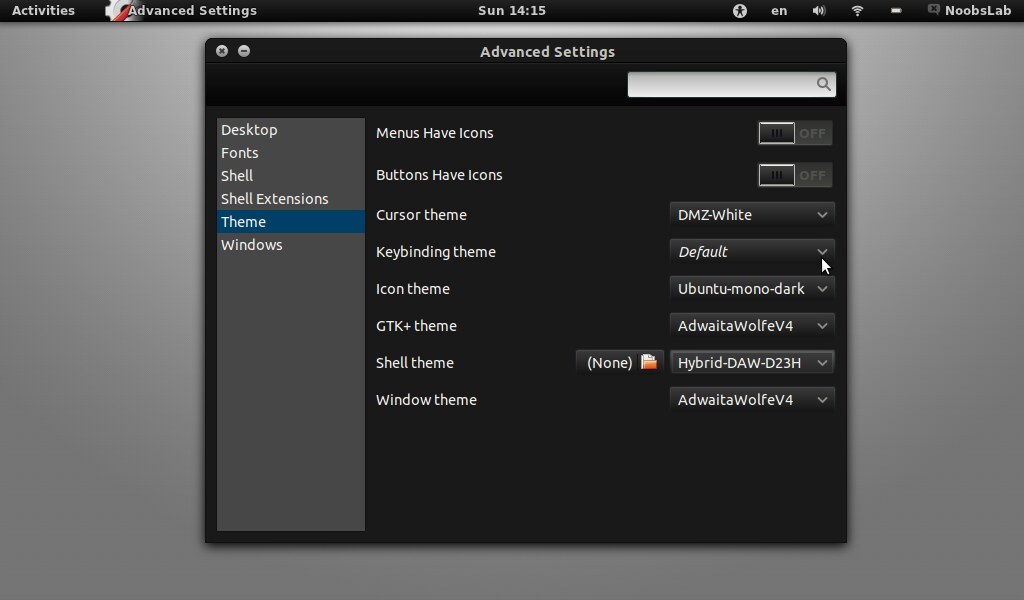
Go to menu and search "advance settings" and open it, If you already have than change it with gnome-tweak-tool. That's it.
Install VLC 2.0 on Ubuntu 11.10 Oneiric Ocelot/Linux Mint

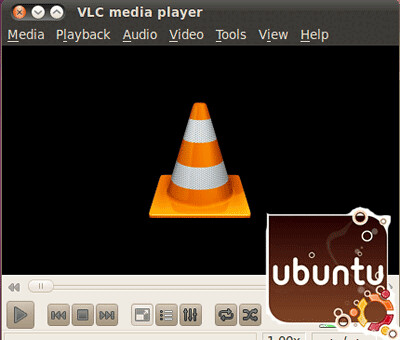
VLC media player (initially VideoLAN Client) is a highly portable multimedia player for various audio and video formats (MPEG, DivX/Xvid, Ogg, and many more) as well as DVDs, VCDs, and various streaming protocols. However in recent years it has also become a extremely powerful server to stream live and on demand video in several formats to our network and the Internet.


To install VLC on Ubuntu/Linux Mint open Terminal (Press Ctrl+Alt+T) and copy the following commands in the Terminal:


Here is the site of VLC. That's it
Install Hybrid Daw Theme in Ubuntu 12.04 Precise Pangolin/Ubuntu 11.10 Oneiric/Linux Mint for Gnome Shell + GTK 3/2

This Theme is support Gnome Shell, You can easily install this theme by terminal. With this Theme you need Extension Theme and Wallpaper to make look more beautiful. First of all theme installation than follow topic.

1: Theme Installation

Ubuntu 12.04 themes

First of all Download these 2 Deb Package files.
1: Gnome-Shell-Extensions-Common_3.2.0
2: Gnome-Shell-Extensions-User-Theme_3.2.0

To install Hybrid Daw theme on Gnome shell open Terminal (Press Ctrl+Alt+T) and copy the following commands in the Terminal:


2: Dock Extension Theme Installation

Ubuntu precise theme

To install Hybrid Daw theme on Gnome shell open Terminal (Press Ctrl+Alt+T) and copy the following commands in the Terminal:


3: Download Wallpaper

This collection include for Desktop+Smartphone+Table Wallpapers
Download Wallpapers

4: If you want to install nice Icons See this Awoken Icons

Finally! Now enter first command for set buttons than following command to install Gnome Tweak Tool:


Now go to menu and search "Advance Setting" and open than change your theme. After Change of Theme restart Gnome Shell (Press Alt+F2 and enter "r") or logout and login back.

That's it. Enjoy
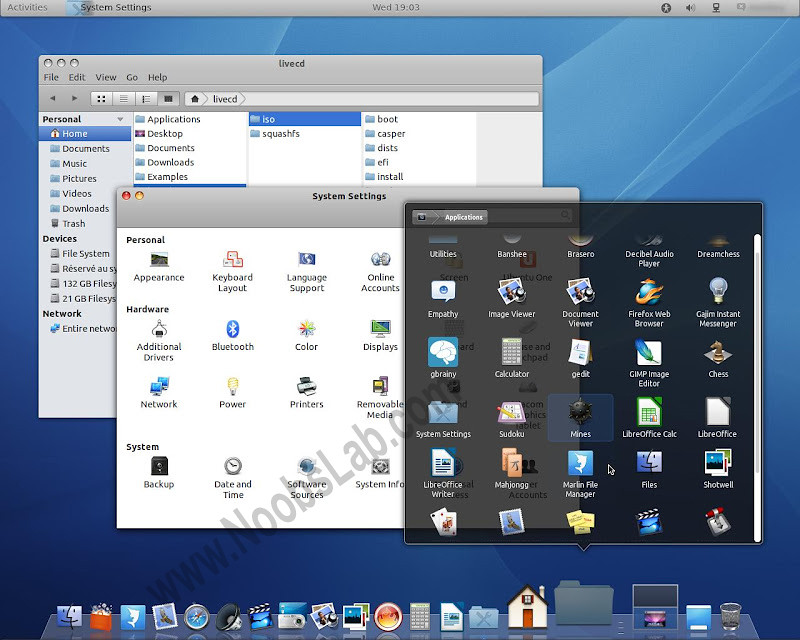
This is for those who are looking forward to Macbuntu 11.10, It looks cool and looks like Mac OS X.
Free OS X is based on Ubuntu Gnome. I haven't tried it yet So I can't say anything about this, It is good or buggy. You should try and after that you can write here your responses.
Free OS X alternative Macbuntu 11.10 is available only for 64-bit systems.
Here are Screen Shots of Fake OS X 11.10.

Note: Free OSX is not Available for 32-bit systems. (If you want to help with 32bit contact the project owner from bottom source link)

You can use UnetBootin to burn iso on Flash Drive.

1st Version:

macbuntu

macbuntu

Based on Debian/Ubuntu 10.04 LTS
Architecture : 64bit
Kernel : Linux 2.6.32-33-Generic
Desktop : Gnome 2.30.2
File browser : Nautilus 2.31.1
Web browser : Firefox 9.0.1
Ubuntu security updates until april 2013
Download Free OSX Ver. 2.2.6 ISO


2nd Version:

macbuntu 11.10

fake osx

Based on Debian/Ubuntu 11.10
Architecture : 64bit
Kernel : Linux 3.0.0-12-Generic
Dekstop : Gnome 3.2.1
File browser : Nautilus 3.2.1 and Marlin 0.1
Web browser : Firefox 10.0.1
Ubuntu security updates until april 2013
Free OSX Ver. 3.1.2 ISO


----Update----
Project Owner Removed Packages
Enjoy
Source: Free OSX
Install Cinnamon 1.3 on Ubuntu 11.10 Oneiric Ocelot/Linux Mint

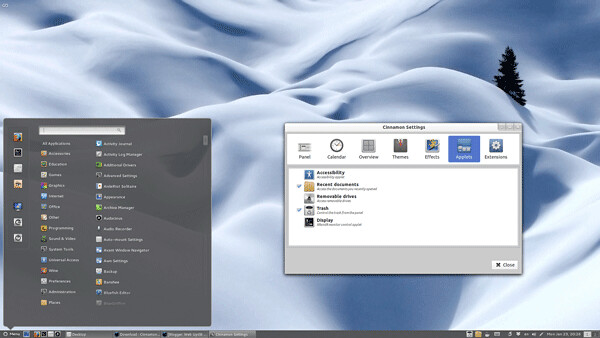
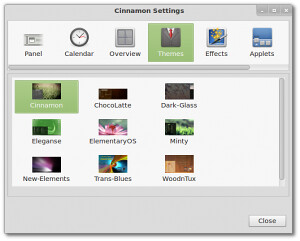
Cinnamon1.3 has been released, the new release comes with many new features and improvements. Cinnamon1.3 comes with an Improved Main Menu, new desktop effects, for customization,added a new configuration tool called "Cinnamon Settings"

cinnamon

Applets Improvements:
In Cinnamon 1.3, every panel component is an applet. This means you can remove the default menu or window list and replace them with 3rd party applets.

Another important feature in this release, is the fact that applets can now be dragged and dropped with the mouse and placed wherever you want within the panel(s). So you can now move any part of the panel(s) around and really fine-tune the layout of your desktop to what works best for you.

Cinnamon, the GNOME2-like GNOME Shell fork, has reached version 1.3, which is considered fully stable. The new release brings many new features, but also separates Cinnamon even more from GNOME Shell.

Settings Improvements:
Cinnamon Settings gained a lot of new features and a lot of new tabs. You can now use it not only to change Cinnamon preferences themselves, but also to configure your fonts, windows, desktop icons, window, cursor, gtk+ themes..etc.

It’s graphical interface was also changed, for the tool to be able to show more information without using more screen estate.


Menu Improvements:
New hover delay preference
Better icon sizes (crispier icons)
Fixed menu size when the number of favorites is high
More exhaustive search results

Other Notable Improvements:
Panel launchers can now be re-ordered by drag & drop
Improved visuals in the default theme
Workspace navigation is now possible in scale mode (note that we’re still planning an Expo mode)
Multiple bug fixes

Here is latest version of Cinnamon 1.4

To install Cinnamon on Ubuntu/Linux Mint open Terminal (Press Ctrl+Alt+T) and copy the following commands in the Terminal:


Here is the page of Cinnamon. That's it
Install Blender 2.62 on Ubuntu 12.04 Precise Pangolin/11.10 Oneiric Ocelot/11.04 Natty/10.10 Maverick/10.04 Lucid/Linux Mint

Blender 2.62 has been release with 205 bugs fixed since it last release, it's available in ppa:cheleb/blender-svn and ready install it through them. this version is available for Ubuntu 10.04 (Lucid) until Ubuntu 12.04 (Precise).


Popular Features:
  • Cycles Render Engine
  • Motion Tracking
  • UV Tools
  • "Carve" Booleans
  • Remesh modifier
  • Game Engine
  • Collada
  • Python API
  • More Features.

To install Blender in Ubuntu/Linux Mint open Terminal (Press Ctrl+Alt+T) and copy the following commands in the terminal:


Here is the log of Blender 2.62
Here is the Home Page
The Ubuntu team is proud to announce the release of Ubuntu 10.04.4 LTS, the fourth maintenance update to Ubuntu’s 10.04 LTS release. This release includes updated server, desktop, alternate installation CDs and DVDs for the i386 and amd64 architectures.

The Kubuntu team is proud to announce the release of Kubuntu 10.04.4. This release includes updated images for the desktop and alternate installation CDs and DVDs for the i386 and amd64 architectures.

This is the last planned maintenance release for the 10.04 LTS series. Future security updates and bug fixes will be individually downloadable from the Ubuntu archive in the same way as before, but no further updates to installation media will be provided for 10.04 LTS. The next LTS release, 12.04 LTS, will be released in April 2012. We recommend that users installing Ubuntu after April install the latest LTS release.

Kate Stewart has announced the release of Ubuntu and Kubuntu10.04.4, the fourth update of the distributions' current long-term support versions, originally released in April 2010: "The Ubuntu team is proud to announce the release of Ubuntu 10.04.4 LTS, the fourth maintenance update to Ubuntu's 10.04 LTS release. This release includes updated server, desktop, alternate installation CDs and DVDs for the i386 and amd64 architectures. The Kubuntu team is proud to announce the release of Kubuntu 10.04.4. This release includes updated images for the desktop and alternate installation CDs and DVDs for the i386 and amd64 architectures. This is the last planned maintenance release for the 10.04 LTS series. Here is the full release announcement.

Ubuntu lts

Download links:
Ubuntu-10.04.4-desktop-i386.iso (694MB,SHA256)
Ubuntu-10.04.4-desktop-amd64.iso (696MB, SHA256)
Ubuntu-10.04.4-server-i386.iso (672MB, SHA256)
Ubuntu-10.04.4-server-amd64.iso (681MB, SHA256)

Kubuntu-10.04.4-desktop-i386.iso (698MB, SHA256)
Kubuntu-10.04.4-desktop-amd64.iso(701MB, SHA256)

Full Circle is famous magazine of Linux Reviews. Full Circle , the excellent magazine published by the Independent Community Ubuntu is taking special numbers.


Here is the HomePage of FullCircle.
Install Ktimer on Ubuntu 12.04 Precise/Ubuntu 11.10 Oneiric/Ubuntu 11.04 Natty/Kubuntu and Enter commands with Automatic Timer

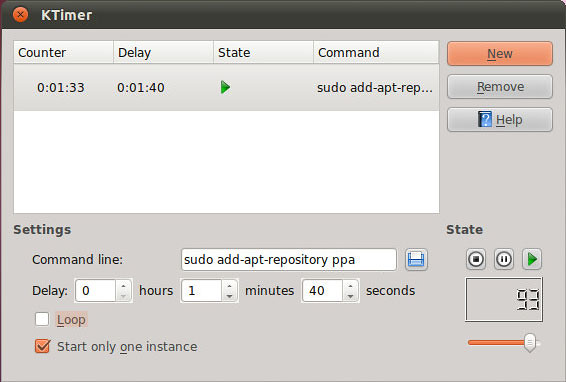
KTimer is a little tool to execute programs after some time.
The latest stable release is version 0.8, included in KDE Applications 4.7. KTimer is a free and open source software, available for Linux and similar operating systems

ktimer

KTimer is nice software that can execute commands after set of timer. To schedule the command execution, Enter command in Command Line box, set your require time and press enter/or press on play button. Than countdown timer will start which will show the time after that remaining time command will be execute. In KTimer there is more two nice options pause and stop which these option you can easily stop command timer, Also you can remove unwanted commands from list.

ktimer Ubuntu

A tiny application with a single purpose:
- Set the delay in seconds
- Enter the command to be run
- Hit the start button
- Go back to what you were doing, and wait for the prompt to start the new task.

To install KTimer on Ubuntu/Kubuntu open Terminal (Press Ctrl+Alt+T) and copy the following command in the Terminal:


Here is the page of KTimer. That's it

Install Application for Disable Touchpad while typing or external mouse on Ubuntu 12.04 Precise/Ubuntu 11.10 Oneiric/Ubuntu 11.04 Natty/Linux Mint

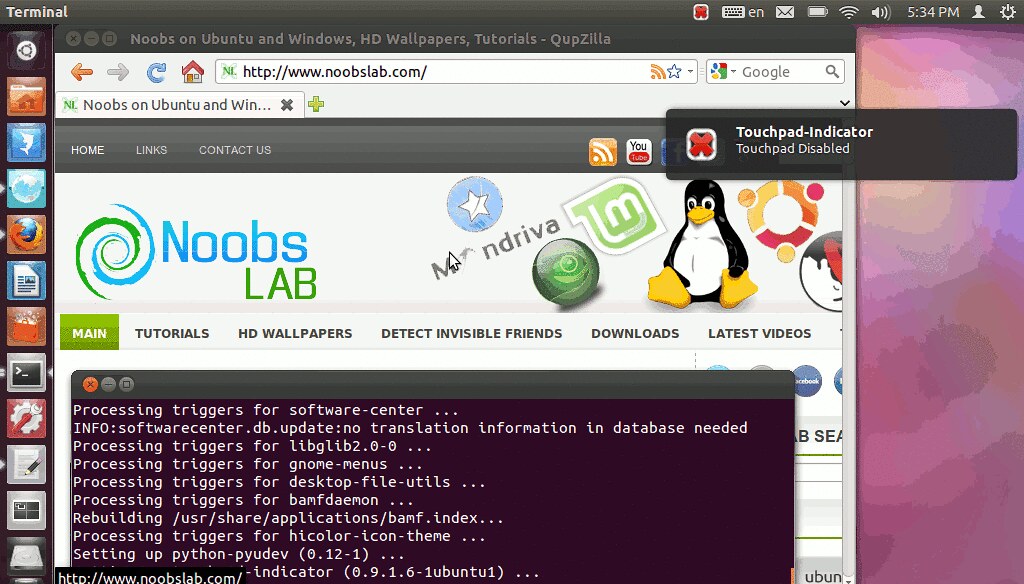
You can Disable Touchpad while your typing with keyboard shortcut, or If you are using external mouse this application can automatically disable touchpad. It is very useful application on Ubuntu and Linux Mint.
This application also include tray indicator to easily change setting, enable and disable touchpad from tray. Auto Start at login option is also included. It also displays the current status notification about enable and disable touchpad.

disable touchpad

Ubuntu touchpad

To install it on Ubuntu open Terminal (Press Ctrl+Alt+T) and copy the following commands in the Terminal:


Here is the page on Launchpad. That's it

Install Slingshot Launcher (Mac os Style) on Ubuntu 11.10 Oneiric (xfce, kubuntu,lmde)/11.04 Natty(xfce, kubuntu,lmde)/Linux Mint(xfce, kubuntu,lmde)

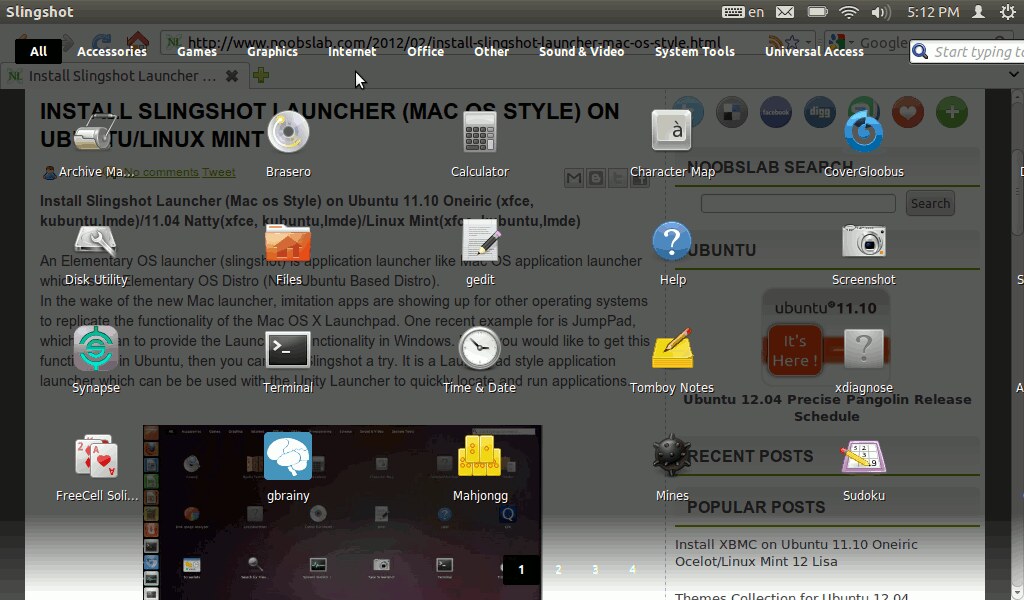
An Elementary OS launcher (slingshot) is application launcher like Mac OS application launcher which use in Elementary OS Distro (New Ubuntu Based Distro).
In the wake of the new Mac launcher, imitation apps are showing up for other operating systems to replicate the functionality of the Mac OS X Launchpad. One recent example for is JumpPad, which is mean to provide the Launchpad functionality in Windows. But if you would like to get this functionality in Ubuntu, then you can give Slingshot a try. It is a Launchpad style application launcher which can be be used with the Unity Launcher to quickly locate and run applications.


Note: for oneiric public key is not available but still you can install with warning.

To install SlingShot Launchpad on Ubuntu/Linux Mint open Terminal (Press Ctrl+Alt+T) and copy the following commands in the Terminal:


Now Enter following command to edit config file:


Change the following values in Text File:
 [Desktop Entry]
 Version=1.0
 Type=Application
 Terminal=false
 Exec=slingshot
 Name=Slingshot
 Icon=/usr/share/icons/logo-black.svg

slingshot

Now go to dash and Search for "Slingshot".
Here is SlingShot on LaunchPad. That's it
Install Unavailable Software in Ubuntu Repository with BleedingEdge on Ubuntu/Linux Mint


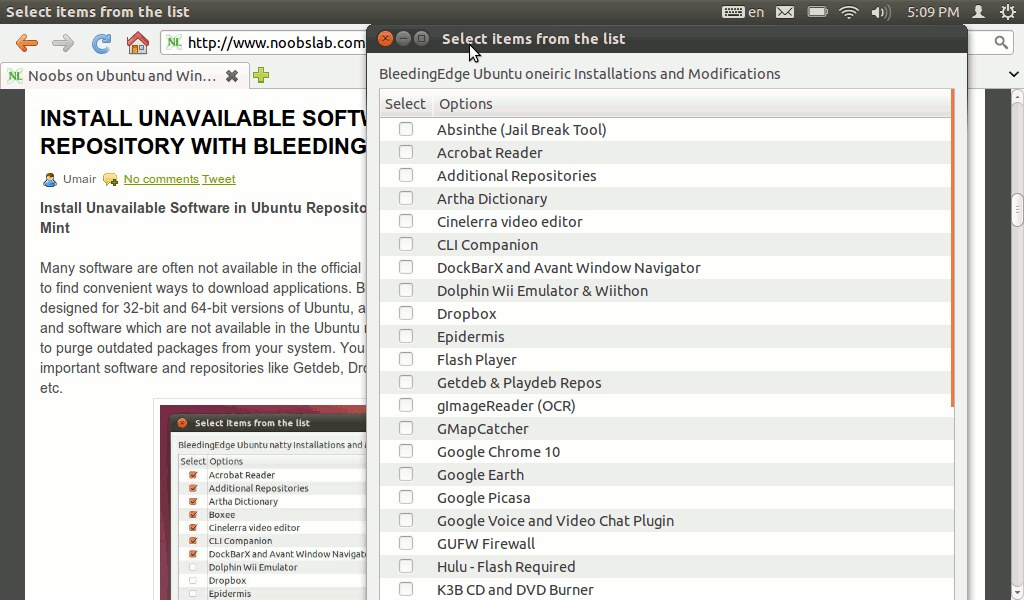
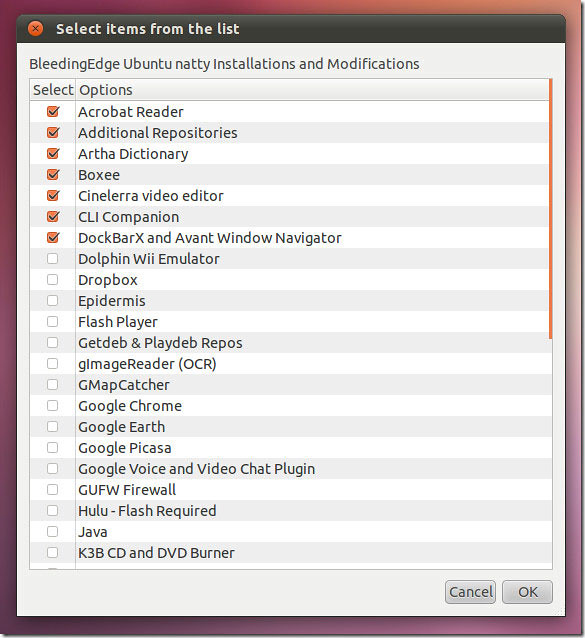
Many software are often not available in the official Ubuntu app repository which makes it hard to find convenient ways to download applications. Bleeding Edge is an open source shell script designed for 32-bit and 64-bit versions of Ubuntu, allowing easy installation of repositories, keys, and software which are not available in the Ubuntu repository. You can also use Bleeding Edge to purge outdated packages from your system. You can use bleeding Edge to easily download important software and repositories like Getdeb, Dropbox, Flash Player, Acrobat Reader, Java, etc.
bleedingedge

Ubuntu software

To Install BleedingEdge on Ubuntu/Linux Mint open Terminal (Press Ctrl+Alt+T) and copy the relevant following commands in your Terminal:


- For Ubuntu 11.10 Oneiric:


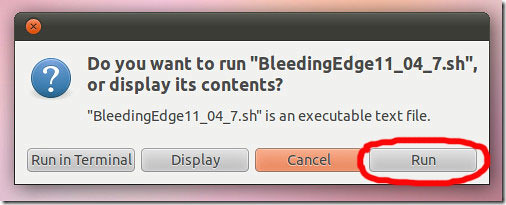
than go to Home Folder and Run the .sh file.

- For Linux Mint 12 Lisa:


than go to Home Folder and Run the .sh file.

- For Ubuntu 11.04 Natty:


than go to Home Folder and Run the .sh file.

- For Ubuntu 10.10 Maverick:


than go to Home Folder and Run the .sh file.

Here is the BleedingEdge Project on SourceForge. That's it

Install YeoWorks Ubuntu Solutions on Ubuntu 11.10/11.04/10.10/10.04/Linux Mint (Fix/Repair Ubuntu Issues)

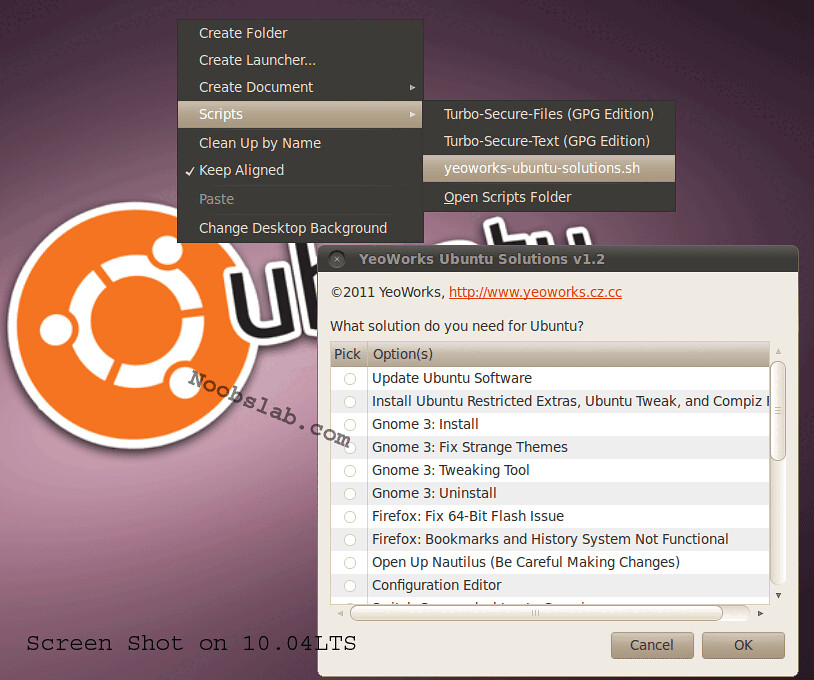
YeoWorks Ubuntu Solutions provides a one click solution to many commonly faced Ubuntu problems. It allows updating Ubuntu, Gnomes 3 installation and uninstallation, Firefox flash issue fix and much more.


Choose any of the problems from the list and click OK for their resolution. The complete list of available options are as follows:
  • Single Click update of Ubuntu Software
  • Installation of Ubuntu extras, Ubuntu Tweak and Compiz Pack
  • Only Support Gnome 3
  • Gnome Tweaking Tool installation
  • Firefox 64-bit Flash issue
  • Fix for Firefox bookmarks and history issues
  • Simple access to Nautilus and configuration editor
  • Switch of Gnome desktop to Compiz or Metacity
  • Conversion of 32-bit Deb files into 64 Bit Deb files
  • Fix for classic Gnome installation
  • Re-installation of Ubuntu desktop
  • Changing of user and root password
  • System cleanup
  • Stop GDM
  • Login without GUI (graphical User Interface)
  • Error: gnconfig-sanity-check-2 exited with status 256

Ubuntu fix

Note: I haven't tested it yet but you can try and reply here how it works for you.

To install YeoWorks on Ubuntu/Linux Mint open Terminal (Press Ctrl+Alt+T) and copy the following commands in the Terminal:


Here is the HomePage of YeoWorks. That's it